
Installing a Chrome extension can make your browser much more useful. You can block ads, save passwords, translate pages, manage tabs, check grammar, capture screenshots, or automate repetitive tasks with just a few clicks.
But there is often one part of the installation process that makes people pause: Chrome extension permissions.
You may see messages such as “Read and change all your data on websites you visit” and wonder what that actually means. Does the extension see your passwords? Can it read your bank account? Can it track everything you do online?
The answer depends on the permission requested, the websites it can access, and what the extension actually does.
This beginner-friendly guide explains what Chrome extension permissions mean, which permissions deserve closer attention, how Chrome's site access controls work, and what you can do to reduce unnecessary access.
What Are Chrome Extension Permissions?
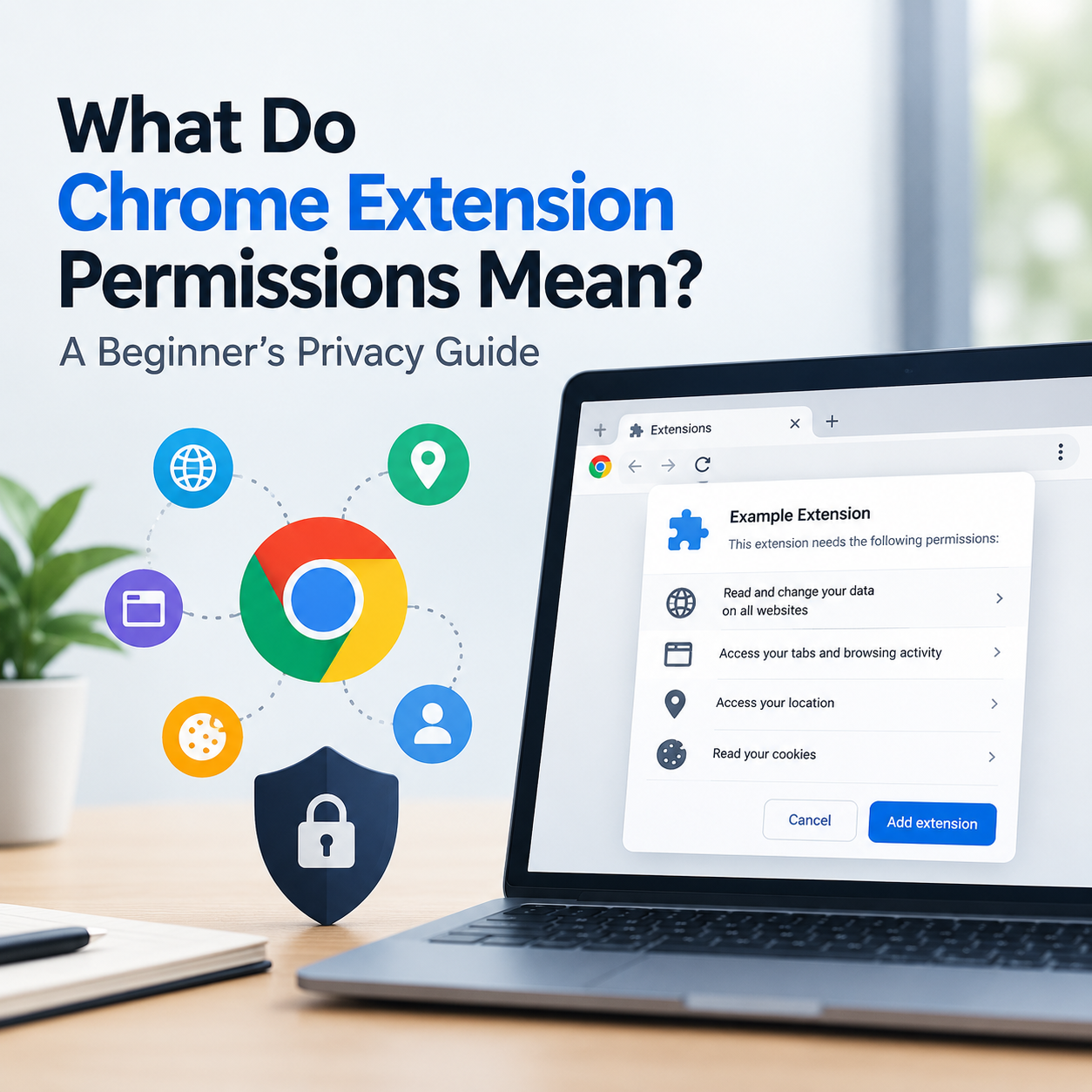
Chrome extension permissions are controls that define what an extension is allowed to access or do in your browser.
An extension has to declare certain permissions when it needs access to Chrome features or website data. Some permissions can trigger warnings during installation because they give an extension access to sensitive browser information or capabilities.
For example, an extension might request permission to:
Read or change information on websites
Access your browsing history
Read your bookmarks
Access copied or pasted information
Manage tabs
Access cookies
Change certain browser settings
Use your location
Interact with downloads or other browser features
The important thing to remember is that a permission describes a capability, not necessarily what the developer intends to do with it.
An extension may need broad access because its core feature requires it. However, you should still understand why that access is necessary before installing it.
Why Do Chrome Extensions Need So Many Permissions?
Consider a simple example.
Suppose you install a grammar-checking extension that works directly inside websites. To identify mistakes while you type, it may need to inspect text on pages you visit.
An extension that modifies every webpage may therefore require website access.
Similarly, an extension that manages your browser tabs may need permission to interact with tabs, while a bookmark-management extension may need access to your bookmarks.
Chrome's official documentation explains that extensions request permissions for the APIs and features they use. Some permissions generate user-facing warnings because they provide access to potentially sensitive capabilities.
So seeing a permission warning does not automatically mean the extension is malicious. Google explicitly notes that a warning indicates the extension can access something sensitive; it does not by itself prove that the extension is dangerous.
The better question is:
Does this extension actually need the permission it is requesting?
Chrome Extension Permissions Explained
Not every permission has the same privacy implications.
Here are some common examples beginners should understand.
These capabilities are documented in Chrome's permissions list. The exact access depends on the permissions and host access declared by the extension.
This is why you should not judge an extension solely by the number of permissions it requests. Instead, look at what each permission enables and whether it makes sense for the extension's purpose.
What Does “Read and Change All Your Data on Websites” Mean?
This is one of the most confusing Chrome warnings.
When Chrome says an extension can “read and change all your data on websites that you visit,” it generally means the extension has permission to access webpage content on the sites covered by its host permissions.
That can include reading information displayed on webpages and modifying webpage content.
For example, an extension designed to change the appearance of websites may need to modify page content. A productivity extension might need to read information from a web application to provide its features.
Chrome's documentation describes this type of access as allowing an extension to read, request, or modify data on pages within the permitted websites.
However, this wording should not be interpreted as:
“The extension automatically has unlimited access to every file on your computer.”
Website access and computer-file access are different capabilities.
The important question is which websites the extension can access.
Chrome Extension Site Access: All Sites vs Specific Sites
One of the most useful privacy controls in Chrome is site access.
Chrome currently allows users to control whether an extension can access:
The current site
Specific sites
All sites
For example, imagine you have a screenshot or productivity extension that you only use on one website.
You may not want that extension automatically running on every website you visit.
Chrome lets you restrict its site access so that it only operates where you need it.
This is an important distinction because:
“The extension is installed” does not necessarily mean “the extension needs unrestricted access to every website.”
If an extension works perfectly with access to one or a few websites, restricting its access can reduce unnecessary exposure.
How to Check Chrome Extension Permissions
You can review an extension's access directly in Chrome.
Step 1: Open your extensions
In Chrome, select the Extensions icon near the address bar and choose Manage extensions.
You can also access the extensions management page through Chrome's menu.
Step 2: Find the extension
Locate the extension you want to inspect and select Details.
Step 3: Review Permissions
Look at the permissions and site access associated with the extension.
Pay particular attention to permissions involving:
Website data
Browsing history
Clipboard information
Cookies
Location
Browser settings
Screen or tab capture
Step 4: Check Site Access
Chrome lets you control whether the extension can read and change site data on:
When you select the extension
The current site
All sites
You can also add or remove specific allowed sites when the extension supports that configuration.
This is one of the simplest ways to improve your browser extension privacy without necessarily uninstalling a useful extension.
Are Chrome Extensions Safe?
Chrome extensions are not automatically safe or unsafe simply because they are available in the Chrome Web Store.
A better approach is to evaluate the extension before giving it access.
The Chrome Web Store does have policies and a review process, but users should still pay attention to the permissions requested and the developer's information.
Google recommends installing extensions you trust and reviewing the permissions requested during installation.
Before installing an extension, consider:
1. Does the permission match the feature?
A tab-management extension requesting access related to tabs makes sense.
A simple extension that changes the color of a webpage but asks for broad access to unrelated browser data deserves more scrutiny.
2. Is the developer identifiable?
Look at the developer information, website, support details, and other extensions they publish.
3. Does the extension still need access?
An extension you installed months ago may no longer be useful.
Unused extensions still deserve attention because they remain installed and may retain permissions.
4. Does the extension request more access after an update?
Extensions can change over time. Chrome supports optional permissions that can be requested later when a feature requires them.
That means a permission request appearing after an update should not automatically be ignored.
Dangerous Chrome Extension Permissions: What Should You Watch?
There is no single permission that makes an extension malicious.
However, some capabilities deserve more attention because they can expose sensitive information or provide substantial control.
For example, Chrome identifies permissions involving access to all website data, browsing history, copied data, location, cookies, browser settings, and certain debugging or capture capabilities in its permission documentation.
Be particularly careful when an extension requests broad website access.
Ask yourself:
Does the extension actually need access to every website?
Could I restrict it to specific websites?
Does the extension handle sensitive websites such as banking or email?
Do I still use this extension?
Is the developer trustworthy and transparent?
Does the requested permission match the advertised feature?
The goal isn't to panic whenever you see a warning.
The goal is to understand the access before granting it.
Browser Extension Privacy Risks Beginners Often Miss
One common mistake is focusing only on the installation warning.
Privacy decisions don't end after you click Add extension.
An extension can have access to websites, browsing-related information, or other browser capabilities depending on its permissions.
Another mistake is installing many extensions without reviewing them later.
Every additional extension increases the amount of third-party software running in your browser.
You should also be cautious with extensions that promise unusually broad functionality for free, especially when their requested permissions seem unrelated to their advertised purpose.
And remember: a familiar extension category does not automatically justify unlimited access.
A password manager, screenshot tool, AI assistant, shopping tool, or productivity extension may have legitimate reasons for requesting access. The correct approach is to understand what access is necessary for the specific feature.
How to Reduce Chrome Extension Access
You don't always need to uninstall an extension.
If the extension supports restricted site access, you can reduce its permissions.
Chrome provides controls for changing an extension's site access, including allowing access only when you select the extension, allowing it on the current site, or allowing it on all sites.
For example:
Before:
Extension → Access to all websites
After:
Extension → Access only on selected websites
This can be a practical middle ground between convenience and privacy.
If you no longer need the extension, uninstalling it is even simpler.
Chrome's extension management controls allow you to disable or remove extensions from the Manage extensions page.
How to Remove Chrome Extension Permissions
If you want to stop an extension from having access, there are two common approaches.
Option 1: Restrict site access
Open:
Chrome → Extensions → Manage extensions → Extension → Details
Then review the site's access options and restrict them where appropriate.
Chrome allows specific sites to be added or removed when the extension's configuration supports this feature.
Option 2: Remove the extension
If you don't use the extension anymore, select Remove from the extension management page.
Removing an extension is often the cleanest solution for software you no longer need.
A Simple Chrome Extension Privacy Checklist
Before installing a new browser extension, ask these questions:
What does this extension actually do?
What permissions does it request?
Why does it need those permissions?
Does it need access to every website?
Can I restrict it to specific websites?
Who developed it?
Do I trust the developer?
Does it handle information I consider sensitive?
Do I really need this extension?
Have I reviewed my installed extensions recently?
If you cannot understand why an extension needs a particular permission, take a moment to investigate before granting access.
Chrome Extension Permissions: The Practical Takeaway
The most important thing to understand about Chrome extension permissions is that a permission is essentially a capability granted to the extension.
A warning such as “read and change all your data on websites” can sound alarming, but it does not automatically mean the extension is malicious. It means the extension has the capability to access or modify website data within the scope of its permissions.
For everyday users, the safest habit is simple:
Install fewer extensions, review their permissions, restrict site access when possible, and remove extensions you no longer need.
You don't need to understand Chrome's entire extension architecture to make better privacy decisions.
You just need to know what an extension can access, why it needs that access, and whether you are comfortable granting it.
FAQs About Chrome Extension Permissions
1. What do Chrome extension permissions mean?
Chrome extension permissions define what an extension is allowed to access or do. Depending on the extension, this can include accessing website data, browsing history, bookmarks, tabs, clipboard information, cookies, location, or other browser features.
2. Is “read and change all your data on websites” dangerous?
Not necessarily. This permission gives an extension the capability to read or modify data on websites within its permitted access. Whether that access is appropriate depends on what the extension does and why it needs the permission.
3. Can I restrict a Chrome extension to one website?
Yes. Chrome allows supported extensions to have site access limited to the current site, selected sites, or all sites. This can reduce unnecessary website access while allowing you to keep using the extension.
4. How can I check Chrome extension permissions?
Open Chrome's Extensions → Manage extensions, select the extension, and choose Details. Review its permissions and site access. Chrome also provides controls for changing how an extension can access site data.
5. Are browser extensions safe?
A browser extension should not be considered safe simply because it is useful or popular. Review its permissions, developer information, requested site access, and whether the permissions make sense for its functionality. Chrome also advises users to approve only extensions they trust.